
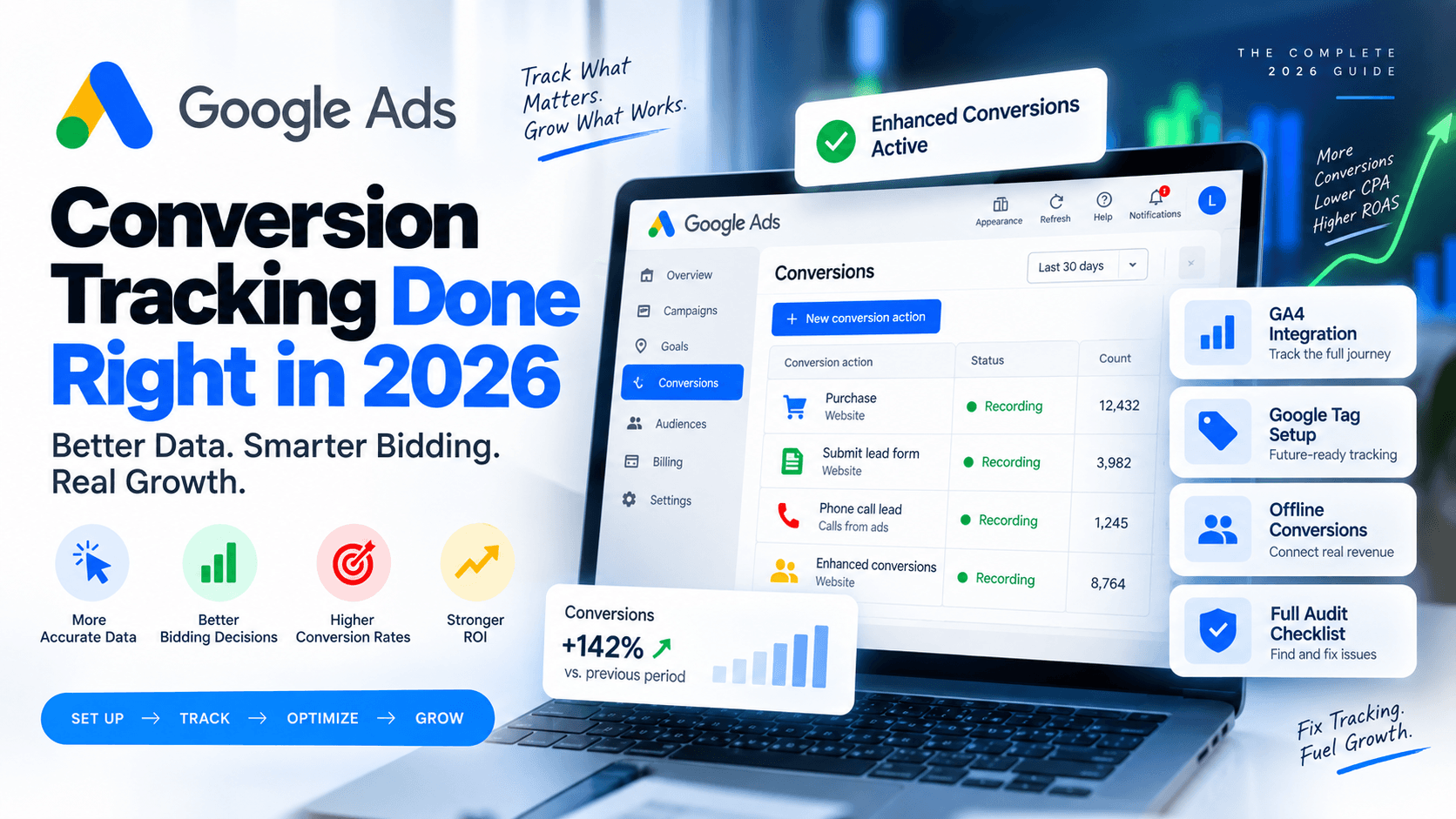
Conversion tracking is the most important technical setup in any Google Ads account. It is also the most frequently broken. When we audit a new account at Luceds, conversion tracking problems are present in the majority of accounts we review - and most of those advertisers have no idea. The numbers look plausible. The campaigns look like they are working. But the data feeding the bidding algorithm is incomplete, duplicated, or measuring the wrong actions entirely.
In 2026, getting conversion tracking right matters more than ever. Smart Bidding strategies like Target CPA and Target ROAS use your conversion data as their primary input. Every bid in every auction is calculated based on the conversions your account has recorded. Bad conversion data produces bad bids, which produces bad results. This guide covers the complete 2026 setup: choosing between GA4 and Google Tag, configuring Enhanced Conversions, importing offline data, and the audit checklist we run on every new account.
Why Conversion Tracking Is Harder to Get Right in 2026
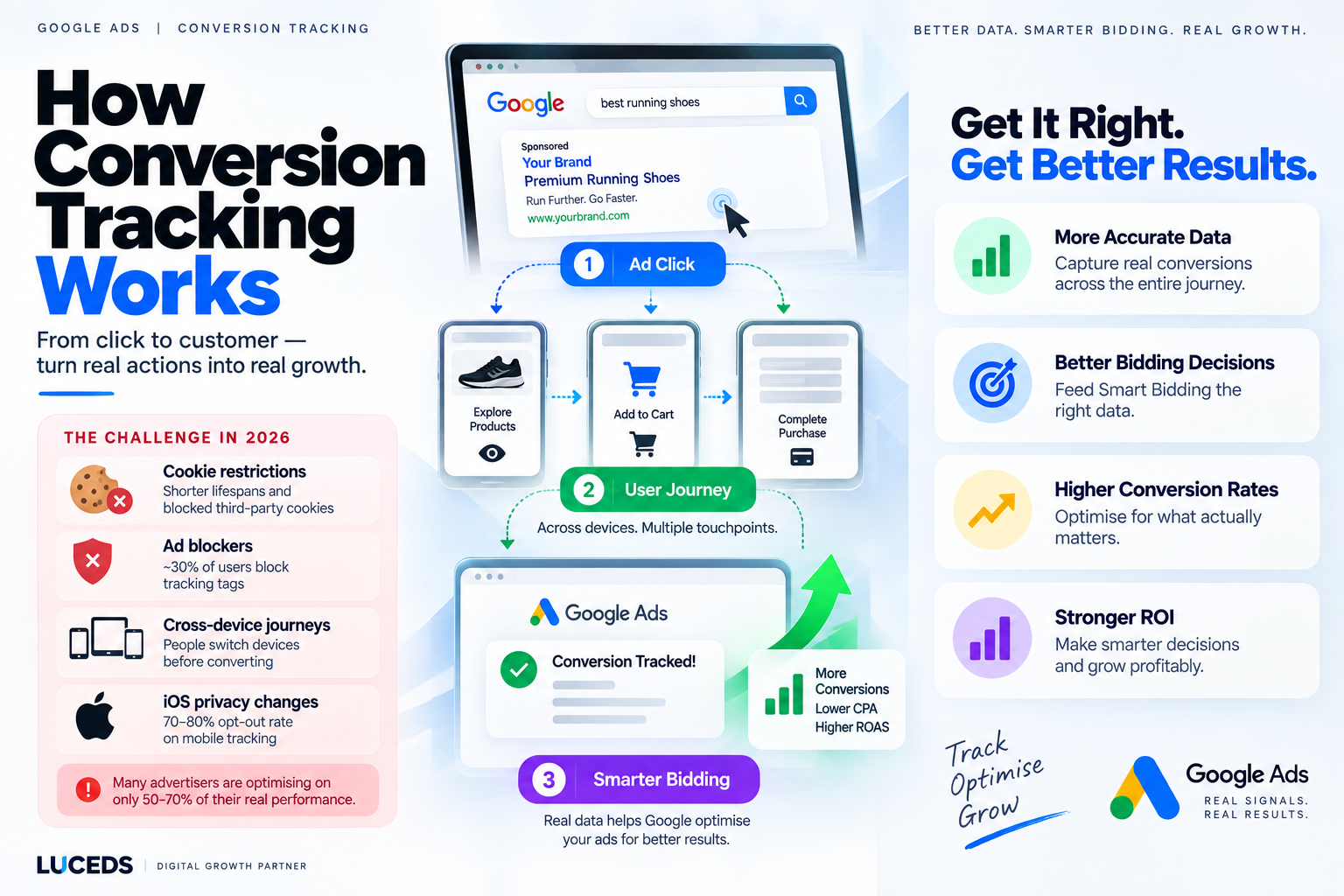
The gap between actual conversions and tracked conversions has widened significantly over the past three years. Multiple factors are working against standard cookie-based tracking simultaneously, and most advertisers are not aware of the cumulative impact.
- Browser cookie restrictions are severe: Safari limits cookie lifespans to 1 to 7 days and blocks third-party cookies entirely. Firefox blocks third-party cookies by default. Chrome's Privacy Sandbox changes continued rolling out through 2026. The result is that a conversion from a user who clicked your ad on Monday and bought on Saturday may not be attributed to your campaign at all.
- Ad blockers block tracking tags: Roughly 30 percent of internet users run ad blockers in 2026. Many ad blockers block Google's tracking tags entirely, meaning conversions from those users are never recorded. This is not a small problem - in some industries and demographics the ad blocker rate is significantly higher than 30 percent.
- Cross-device journeys break attribution: The average conversion path now spans two to three devices. Someone might see your Google ad on their phone, research your business on their laptop, and complete a purchase on their tablet. Standard cookie-based tracking cannot connect these touchpoints and records the conversion as coming from no ad - or from the wrong one.
- iOS privacy changes removed a large chunk of mobile tracking: iOS App Tracking Transparency has produced a 70 to 80 percent opt-out rate since 2021 according to Adjust and Branch industry data. On mobile, a significant portion of conversion signals that previously reached Google no longer do. Advertisers who get a significant share of their traffic from iPhone users are particularly affected.
Many advertisers are optimising on data that captures only 50 to 70 percent of their real performance. Smart Bidding trained on incomplete data makes systematically worse bids - not slightly worse, but structurally miscalibrated against the wrong conversion profile.
Step 1: Create Your Conversion Actions Correctly
The first step is defining what you actually want to track. This sounds obvious but it is where many accounts go wrong. The most common mistakes are tracking page views as conversions, tracking every micro-interaction as a primary conversion, and duplicating conversions by importing from both GA4 and the Google Tag simultaneously.
- Go to Goals then Conversions in Google Ads: Click the plus button to create a new conversion action. You will be asked to choose between Website, App, Phone calls, and Import. For most businesses the right choice is Website for form submissions and purchases, and Phone calls for businesses where phone enquiries are primary leads.
- Set the category correctly: Choose Purchase for e-commerce transactions, Submit lead form for contact and quote forms, and Phone call lead for calls. The category affects how Google's algorithm weighs the conversion in bidding. Do not use Page view or Other for your primary conversion actions.
- Set conversion value: If you have an e-commerce store, use the actual transaction value. If you have a service business, set a fixed value that represents your average lead value - for example if your average job is $2,000 and you close 20 percent of leads, each lead is worth $400. Having conversion values enables Target ROAS bidding which is more powerful than Target CPA.
- Set the attribution model to data-driven: Google renamed this setting in 2024 and it now defaults to data-driven attribution for most accounts. Data-driven attribution uses machine learning to distribute conversion credit across touchpoints based on your actual data. It is significantly more accurate than last-click, which systematically over-credits branded search and under-credits upper-funnel activity. Confirm your primary conversion actions are using data-driven attribution under conversion settings.
- Mark only your most important actions as Primary: Primary conversion actions feed Smart Bidding directly. Secondary conversions are reported but do not influence bids. Only your most important revenue-generating actions - purchases, form submissions, phone calls - should be marked Primary. Micro-conversions like page views, video plays, and scroll depth should be Secondary or removed entirely from conversion tracking.
Step 2: Install the Google Tag Correctly
Google Tag Manager is the recommended installation method for most businesses. It lets you manage all your tracking tags without editing website code for every change, and it makes implementing Enhanced Conversions significantly easier.
- Create a Google Tag Manager account if you do not have one: Go to tagmanager.google.com and create a new account for your domain. You will receive a container snippet - two pieces of code that go on every page of your website. The first goes in the head tag, the second immediately after the opening body tag. If you use WordPress, the GTM4WP plugin handles this automatically.
- Add the Google Tag in GTM: In GTM create a new tag, select Google Tag as the tag type, and enter your Google Ads Conversion ID. Set the trigger to All Pages. This installs the base Google Tag across your entire website without needing to touch your site code again.
- Create a conversion event tag: For each conversion action, create a separate tag in GTM. Select Google Ads Conversion Tracking as the tag type, enter your Conversion ID and the specific Conversion Label for that action, and set the trigger to fire on your thank you page URL or form submission event. The Conversion ID and Label are found in Google Ads under Goals then Conversions then clicking your conversion action.
- Test before publishing: Use GTM Preview mode to walk through a test conversion on your website before publishing. You should see your conversion tag fire on the thank you page or confirmation event. Also use Google Tag Assistant as a Chrome extension to verify tags are firing correctly. Never publish tracking changes without testing first.
Step 3: Enable Enhanced Conversions
Enhanced Conversions is the most important improvement you can make to your conversion tracking setup in 2026. Google unified Enhanced Conversions for web and leads into a single feature in June 2026, removing the previous two-setup requirement. It now works through one account-level toggle regardless of whether you are tracking purchases, form leads, or both.
Enhanced Conversions works by collecting first-party data that users voluntarily provide on your website - email address, phone number, name - hashing it securely in the browser before it leaves your site, and sending that hashed data to Google alongside the standard conversion signal. Google matches the hashed data against its signed-in user database to connect conversions to ad clicks that cookie-based tracking would miss. Standard conversion tracking misses 20 to 30 percent of conversions due to cookie limitations. Enhanced Conversions recovers a significant portion of those, with Google's published case study data showing 5 to 17 percent improvement in measured conversion volume on average.
- Turn on Enhanced Conversions in Google Ads: Go to Goals then Conversions then Settings. You will see an Enhanced Conversions section. Toggle it on and accept the customer data terms. Select Google Tag Manager as your implementation method.
- Configure in Google Tag Manager: Open your Google Ads Conversion tag in GTM and find the User-provided data section. Choose Manual configuration rather than Automatic - automatic detection creates GDPR compliance risks by potentially capturing data without explicit consent. Configure variables that pull hashed user data from your dataLayer - email, phone, name.
- Ensure your website pushes data to the dataLayer: Your website needs to push customer data to the GTM dataLayer on conversion pages - form confirmation pages, order confirmation pages, account creation success pages. If your website is on WordPress with a form plugin, most plugins support dataLayer integration either natively or through add-ons.
- Verify match rates in Google Ads: After running Enhanced Conversions for 7 to 14 days, check your match rate in Google Ads under Goals then Conversions then Diagnostics. A match rate above 40 percent is considered good. Below 20 percent indicates a data quality issue with your implementation.
Step 4: Import Offline Conversions
For service businesses where leads convert offline - phone calls that result in booked jobs, form enquiries that close in person, B2B deals that close through a sales team - offline conversion import is often the most impactful tracking improvement available. Without it, your Smart Bidding algorithm has no idea which clicks actually generated revenue. It optimises toward the form submission, not toward the closed job.
- How offline conversion import works: When someone clicks your ad and fills out a contact form, Google assigns a unique click identifier called a GCLID to that session. Your website captures and stores this GCLID alongside the lead details in your CRM. When the lead closes into a paying client, you upload a file to Google Ads containing the GCLID, the conversion name, the conversion time, and the conversion value. Google matches this back to the original click and uses it to train Smart Bidding toward the profile of clicks that become paying clients, not just enquiries.
- Google Data Manager now handles offline imports: Since June 2026, Google has migrated offline conversion upload to Data Manager, which is now integrated across Google Ads, Google Analytics, and Display and Video 360. Connect your CRM directly through Data Manager for automated offline conversion upload. Salesforce, HubSpot, and major CRM platforms have direct integrations. For smaller CRMs, a weekly manual CSV upload is still supported.
- The 90-day attribution window matters: Google Ads has a 90-day attribution window for offline conversions. This means you can upload a conversion up to 90 days after the original click and it will still be attributed correctly. For service businesses with long sales cycles this is particularly important - a commercial HVAC job that was quoted in week 1 and approved in week 10 can still be properly attributed to the original Google Ads click.
Step 5: Set Up Consent Mode V2 for EU and UK Traffic
If you receive any traffic from the European Economic Area or the United Kingdom, Consent Mode V2 is not optional. Google made it mandatory in March 2024 and continued enforcing it through 2026. Accounts without Consent Mode V2 are at risk of regulatory non-compliance and may lose access to certain Google features.
Consent Mode V2 works by adjusting how Google's tags behave based on user consent choices. When a user declines tracking cookies, Consent Mode does not fire the full tracking tags - but it does send anonymised, aggregated signals that Google uses for modelling. Google's modelling can recover up to 65 percent of lost conversion journeys from users who declined consent. This is significantly better than simply not tracking those users at all, which is what happens without Consent Mode.
The Conversion Tracking Audit Checklist
When we audit a new Google Ads account at Luceds, this is the conversion tracking checklist we run through. Work through these checks on your own account and fix any items that are incorrect.
- Check for duplicate conversions: Go to Goals then Conversions and look for the same conversion action appearing multiple times. The most common cause is importing conversions from both GA4 and the Google Tag for the same event. Pick one source per conversion action and remove the duplicate.
- Verify primary vs secondary classification: Only purchases, form submissions, and phone calls should be marked as Primary conversions. Page views, time on site, and scroll events should be Secondary or removed. Check every conversion action and confirm the classification is correct.
- Check conversion windows: The default conversion window is 30 days for clicks and 1 day for views. For products or services with longer consideration cycles, extend the click conversion window to 60 or 90 days. A plumbing company might have a 7-day window that is fine. A B2B software company might need 90 days to capture deals that close after a long evaluation.
- Confirm tags are firing with Tag Assistant: Install Google Tag Assistant as a Chrome extension and walk through a test conversion on your website. Confirm the Google Tag fires on every page and the conversion tag fires only on the thank you or confirmation page. If both fire on every page you have a severe over-counting problem.
- Compare Google Ads conversions against CRM data: Pull Google Ads conversions for the last 30 days and compare against the actual leads or sales recorded in your CRM for the same period. A ratio significantly above 1 means you are over-counting. A ratio significantly below 1 means you are under-counting. Either indicates a tracking problem that is degrading your Smart Bidding performance.
- Check conversion values are set: If your conversion actions show zero conversion value, your campaigns cannot use Target ROAS bidding and your reporting cannot calculate ROAS. Set a fixed value for lead generation conversions based on your average lead value, and dynamic values for purchase conversions that pull the actual transaction amount.