
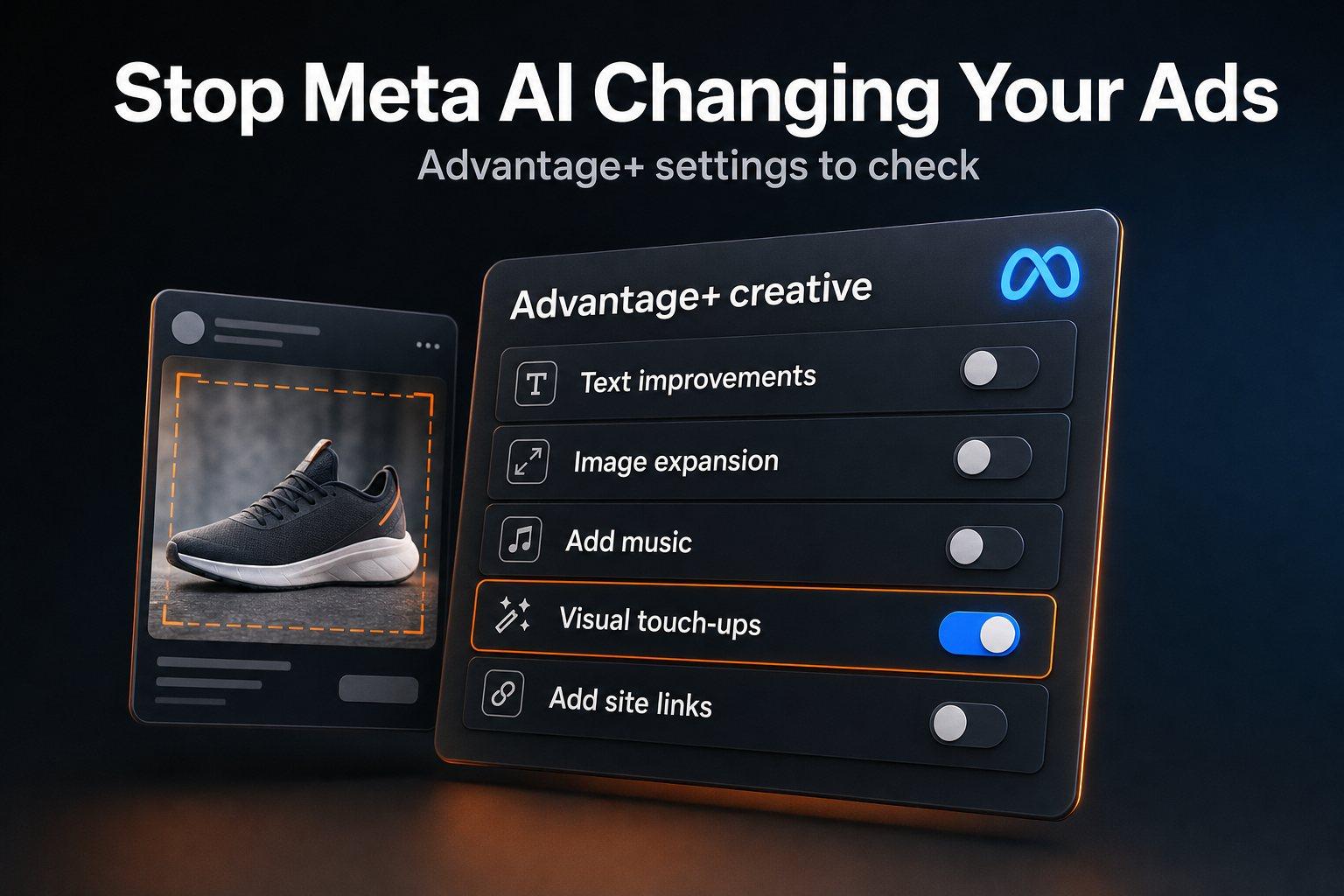
To stop Meta's AI changing your ads, open each ad in Ads Manager, find the Advantage+ creative section and switch off every enhancement you have not approved, then check again whenever you duplicate an ad, swap the creative or change the format. Meta says advertisers can opt out of individual Advantage+ features at any time from inside Ads Manager, but there is no single master switch, and agencies have reported settings coming back on after they were turned off.
The question has become more urgent this autumn. Meta planned new terms from 20 November 2026 that would have made advertisers solely responsible for what its AI features produce, then paused them on 5 November. This guide explains what was paused and what still applies, which AI edits Meta can make to your creative, a step-by-step audit to lock your ads down, and how to decide which enhancements are worth keeping.
Why This Matters Right Now
Through 2026, a steady run of brands said Meta's AI had altered ads they believed were running exactly as uploaded. In June, REI said it had been enrolled in an AI personalisation tool without its knowledge after an Instagram ad showed a badly distorted version of a real bicycle photo. In October, trade press reported that Bookshop.org found an AI-generated illustration inserted into a human-made ad, and Adweek reported that the agency Exverus saw extra sitelinks, translated copy and generated images appear on client ads. Both pulled or disabled the features once they noticed.
Then came the terms. Meta's revised Commercial Terms included a new section on AI features. As reported by Search Engine Journal, it would have made advertisers solely responsible for the results of Meta's AI features, including features Meta switches on automatically. The current Ad Creative Generative AI Terms, in place since May 2024, were written around AI tools an advertiser chooses to use, so this would have been a real shift in who carries the risk.
Most small business owners we speak to have never opened the Advantage+ creative section of an ad. That is the gap this post closes.
Meta Paused the November 20 Terms: What Still Applies
On 5 November 2026, Meta posted a Business Help Center notice saying the updates to four documents are paused and will not take effect on 20 November 2026. No replacement date has been given. Here is where things stand:
- What was paused: The updated Meta Commercial Terms, Product Catalog Terms, Self-Serve Ad Terms and Ad Creative Generative AI Terms, including the AI features liability section and a new website crawling clause.
- What stays in force: The existing versions of those four documents, until Meta says otherwise. Running ads on 20 November does not mean you have accepted the new wording.
- Why Meta paused: Meta said it wants more time to engage with stakeholders and get the changes right. The pause followed court orders in Brazil and Norway, and the UK Competition and Markets Authority has an open investigation with fact-gathering scheduled into January 2027.
- What did not change: The AI features themselves. Advantage+ creative enhancements still exist, and the pause does nothing to switch them off in your account.
So the pause buys time on the legal question, not on the practical one. Whatever the final terms say, an ad that shows customers a product you do not sell, a price you never offered or an image that looks wrong is your brand's problem the moment it goes live. Treat the pause as a window to get your settings in order, because Meta has not said the liability idea is gone, only that it is delayed.
What Advantage+ Creative Can Change in Your Ads
Advantage+ creative is Meta's umbrella name for automated changes to your creative. Meta's developer documentation describes it as creating multiple variations of an ad and showing each person the version it predicts they will respond to best. It is not a single feature. It is a set of separate enhancements, and each one can be on or off.

Meta groups some of these into what it calls standard enhancements, a basic set it describes as optimising your creative. According to Meta's Marketing API documentation, that bundle covers:
- Image templates: Applying a template to your image.
- Image touch-ups: Automatic visual adjustments to your picture.
- Text optimisations: Automated changes to how your ad text is presented.
- Relevant comments: Showing selected comments from your post underneath the ad.
- Video auto-crop: Adjusting the aspect ratio of your video to fit different placements.
In the Marketing API, Meta has also retired the old all-or-nothing standard enhancements switch. Advertisers now opt in or out of each feature individually, which is more control but also more boxes to check.
Beyond that bundle, practitioners auditing Ads Manager in 2026 have reported further options at ad level, including image expansion, text variations, added music, animation and automatic translation, plus creative setup choices such as promotions, website highlights and product additions. The exact list varies by objective, format and account, and Meta adds and renames options regularly, so treat any list, including this one, as a starting point rather than a guarantee of what you will see.
How to Turn Off Meta AI Ad Enhancements: Step by Step
Set aside 30 to 60 minutes and work through every active ad. If you run a small account with a handful of campaigns, this is a single sitting.
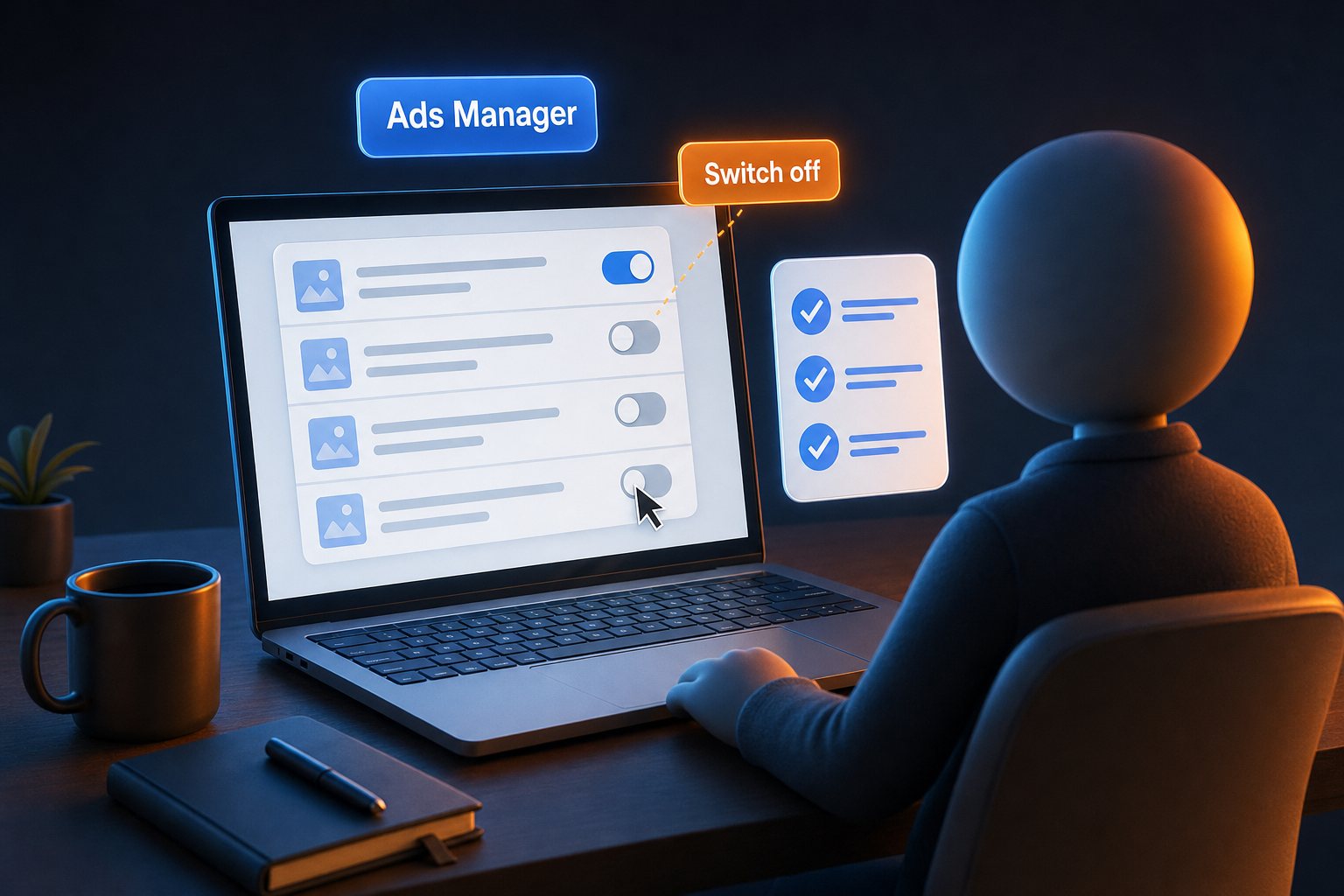
- Start with your live ads: In Ads Manager, filter to active and scheduled ads first. These are the ones customers can see today.
- Open each ad for editing: Go to the ad level, click Edit and scroll to the Advantage+ creative section. Expand any collapsed menus. One agency told Adweek the options can be hard to find inside collapsed menus.
- Switch off anything you have not approved: Go through each enhancement one by one. If you cannot explain what it does to your ad, turn it off for now. You can test it on purpose later.
- Check the product and destination options: Look for anything that adds catalogue products, sends people somewhere other than your landing page or adds promotions. These change what you are offering, not just how it looks.
- Preview every placement: Use the ad preview to scroll through Feed, Stories, Reels and other placements. Look for cropped faces, cut-off text, odd expansions and translated copy.
- Publish and recheck within 48 hours: Reopen a sample of ads two days later and confirm the settings held. Several agencies reported settings switching back on after being turned off, and Meta has not explained why.
- Repeat after every duplicate or edit: Recommended enhancements can appear selected again when you duplicate an ad, replace the creative or change the format. Build the check into your launch routine rather than treating it as a one-off clean-up.
If your account shows default creative feature settings at account level, review those too, but do not rely on them alone. Check the ad itself, because that is what actually serves.
There is no master off switch for Meta's AI creative tools. Control comes from checking each ad, every time you launch, duplicate or edit one.
Which Enhancements Are Worth Keeping?
Turning everything off is the safe default, but it is not always the best long-term choice. Some enhancements are low risk and can help an ad fit more placements. Others change your message in ways you cannot fully review. In the accounts we audit, a simple three-way split works well:
- Usually fine to test: Cropping and aspect ratio adjustments, and showing relevant comments, if your comments are positive and moderated. These change format more than meaning.
- Test carefully, one at a time: Text variations and image touch-ups. They can help, but check that rewritten headlines stay accurate and on brand. Run them as a deliberate test with a clear comparison.
- Keep off unless you have a clear reason: Generated or expanded images, added promotions, translations and anything that adds products or changes the destination. These can put claims, offers or visuals in front of customers that you never signed off.
Be stricter if you are in a regulated area such as finance, health, legal or housing, if your product photos must be exact, such as bikes, furniture, fashion or food, or if your ads carry prices and offers. A small visual error in those categories can mean complaints, refunds or a compliance problem.
One more thing to watch for: newer versions of Meta's Marketing API include defaults that can add product showcases to some new ads and widen device reach on new Sales ad sets unless the advertiser opts out. Meta has not said whether the same defaults apply in Ads Manager. If you use a third-party tool or agency software that builds ads through the API, ask whoever manages it how those defaults are handled.
Signs Meta's AI Has Already Changed Your Ads
If you have been running Advantage+ campaigns for a while without checking, look for these warning signs before you start the audit:
- Customers or staff mention an ad that does not look like anything you made.
- Comments on your ads point out odd images, wrong products or text in another language.
- Clicks are going to product pages or shop experiences you did not choose as the destination.
- Ad previews in different placements show crops, backgrounds or headlines that do not match your upload.
- Breakdowns by creative show variations you do not recognise.
If you spot any of these, take screenshots, note the ad IDs and dates, and switch the relevant enhancements off before you investigate further. A record helps if you need to raise the issue with Meta support or explain it to your own team.
When to Get Help
If you run a handful of ads, this audit is something you can do yourself, and it is worth doing this month. It gets harder when you have dozens of campaigns, several people launching ads, a catalogue feeding product ads, or a regulated product where one wrong image creates real risk. That is the point where a repeatable process matters more than a one-time fix.
At LUCEDS, a creative settings check is part of every Meta Ads audit we run, alongside tracking, structure and spend. If you would rather have someone go through your account and set up a launch checklist your team can follow, we are happy to take a look.